On the Business plan every technician you pay for gets a pin of their own. Every step from signing in to the pin being placed, and what to press when you take somebody on or off.
Placing a technician you paid for at signup costs nothing more. The button at the top of your profile says how many are placed and takes you straight to the next one.
Pressing Save changes places pins and keeps what you typed, nothing else. The only thing that adds to your bill is the button marked "costs more", and it shows you the price and asks first. The only thing that takes a technician off your bill is Remove this technician, which asks first too.
1Go to yellowpagesrv.com and press Sign in. It is at the top right of the map. There is no password, and nothing to remember except the email you signed up with.

2Type the email you signed up with, then press Continue. The same one your receipt came to. If you have set a passkey up on this device, press the green button above the box instead and you go right in.

3Pick a link or a code. Email me a link if you will open the email on this same device. Email me a code if your email is on your phone and you are signing in on a computer.

4Open the email. It carries what you asked for: the code, or the link, never both. It works once and stops working after 30 minutes. If it does not appear in a minute, look in junk or spam.
5If you chose the code: type it and press Sign in. Read it off your phone, type it on the screen you are signing in on. Then you are in.

6If you chose the link: press it, then press Sign me in. Your email has a green Sign me in button instead of a code. Press it, and the page it opens asks for one more press, on that same device.

7You are in. Under your business name, the button says how many technicians are placed. Press it. It reads something like 1 of 3 technicians placed. Place the other 2. Your own pin is the one already placed. Pressing the button adds a pin box for the next technician and moves the page down to it, so there is nothing to hunt for.
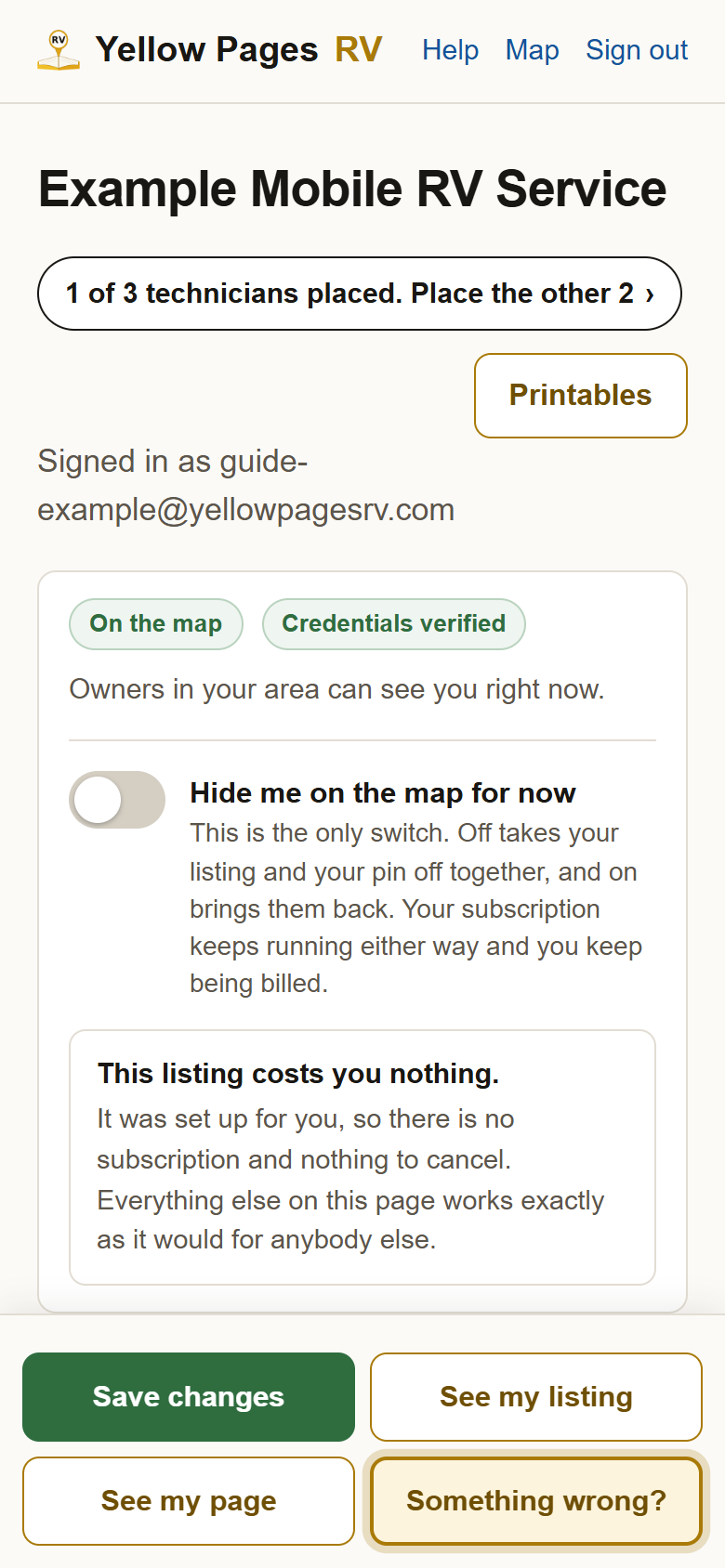
8Type the town they work from and pick it from the list. The new pin box is headed Technician 2. Type the town or zip code in Which town is this and pick from the list, and their pin lands there. Put each technician where they actually work from, because their pin is where owners see them.
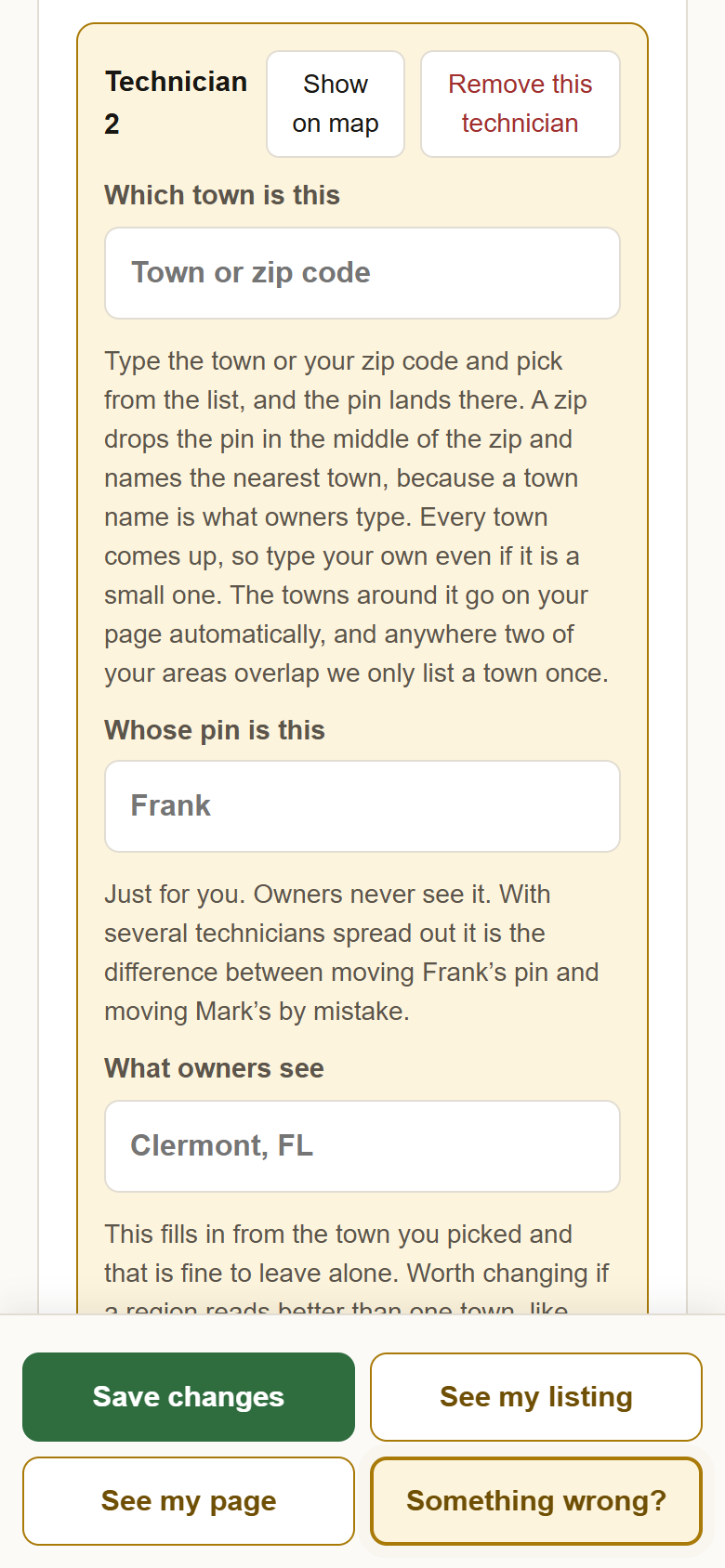
9Put their name in Whose pin is this. Just for you. Owners never see it. With several technicians spread out it is the difference between moving one person's pin and moving another's by mistake.
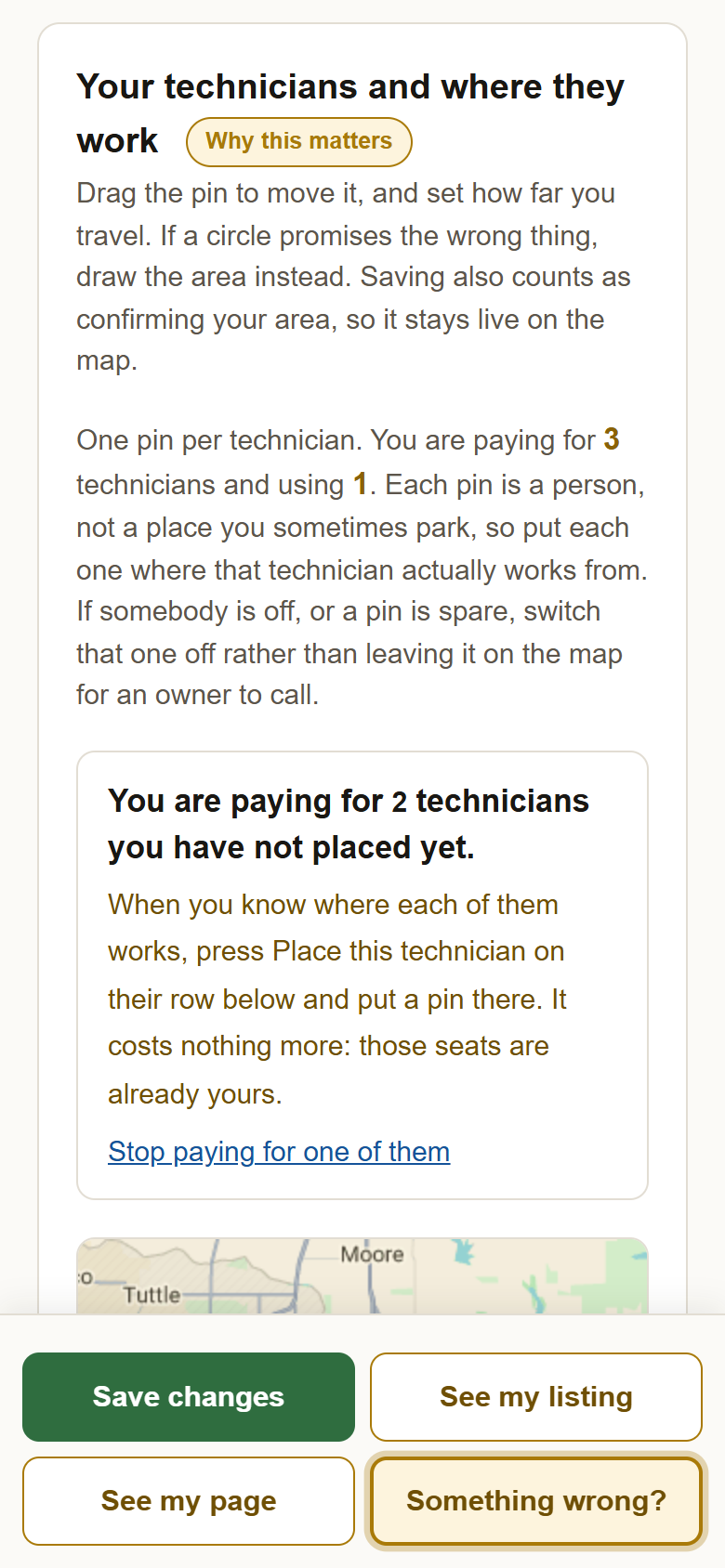
10Say how far they travel, then press Save changes. The miles box is further down the same pin box, the same as your own. Be honest with it: an owner who calls because the circle said you cover them, and hears you cannot get there, has wasted their time and yours. Save changes is the green button at the bottom of the screen. Pressing it places the pin and changes nothing about what you pay.
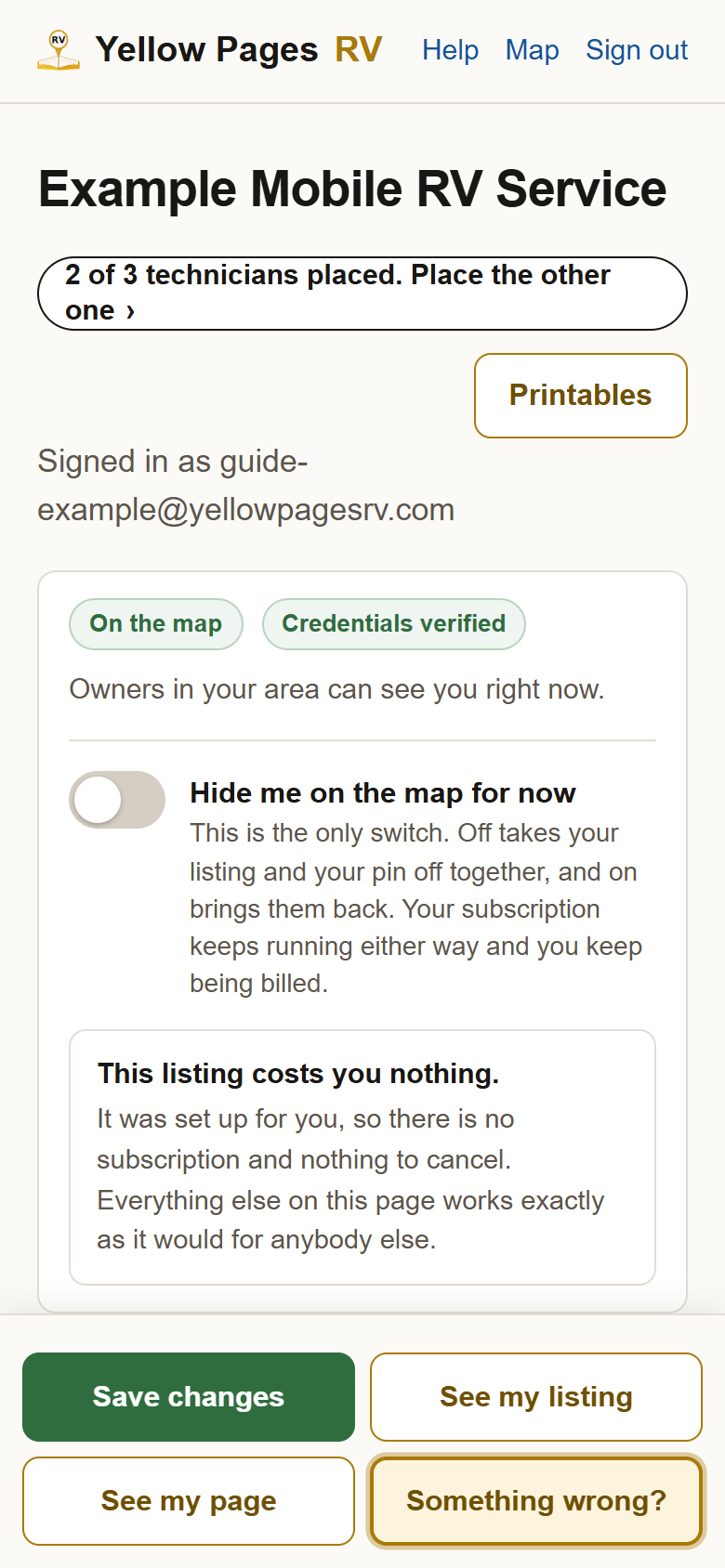
11Back at the top, the button now counts them. Press it again for the next one. It reads 2 of 3 technicians placed. Place the other one. When everyone is placed it reads 3 of 3 and stops being a button.
12The other way in: the empty rows in the card. Scroll down to the card headed Your technicians and where they work. Under your own pin, every technician you have paid for and not placed is a row of its own, Technician 2. Not placed yet, with a Place this technician button. It does exactly what the button at the top does.
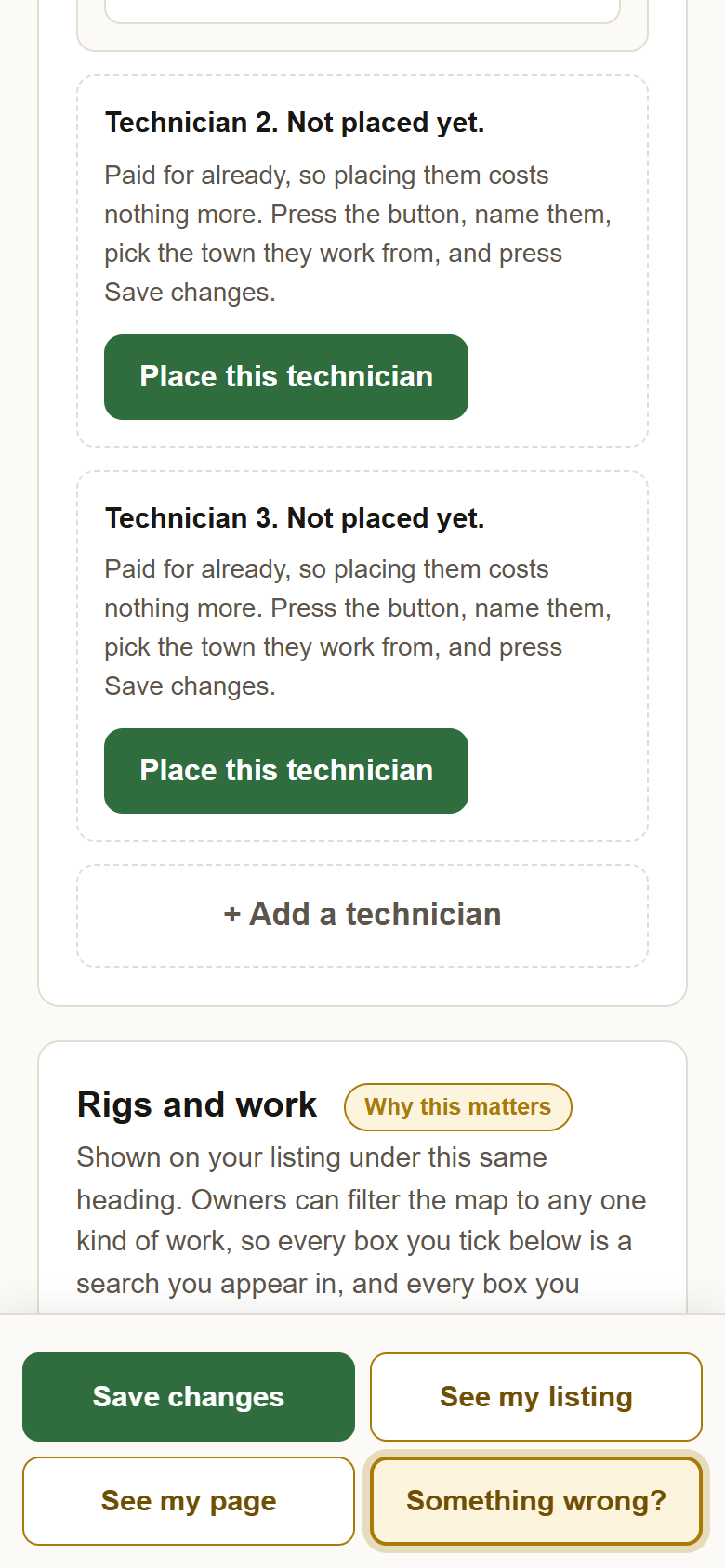
13The card also says how many you are paying for and how many are placed. A paid seat with no pin on it is normal. It means you have not named that person yet, and it is not a warning. Leave it until you know where they work. The link Stop paying for one of them is the only thing in that box that touches your subscription, and it asks first.
14Taking on one more than you paid for. Once every seat has a pin, the button at the bottom of the card reads + Add a technician (costs more). Press it and a panel shows what you pay now, what you would pay after, and what is charged today, before anything happens. Nothing is charged until you press Yes, add a technician. Not now closes it and changes nothing.
15Taking somebody off. Press Remove this technician on their pin. It asks first, and it says plainly what happens to the money: the unused part of what you already paid stays with us as a credit against your next bill, it is not refunded to the card, and nothing is charged today. Then it shows the new rate. Keep the technician closes it and changes nothing. Pressing Save changes never removes anybody.
?Still stuck? If the button at the top does not say how many are placed, reload the page once. If it still does not, or a technician you paid for is not showing as a row, write to support@yellowpagesrv.com with your business name and a person will fix it.
 Yellow Pages