All guides Yellow Pages RV

Adding your Google or Facebook reviews

Paste the link to your reviews, tell us the numbers, and your rating goes on your listing once we have checked it.

Nothing shows until we have checked it.

We check every rating against your page by hand, usually within a day. Until then your listing carries the link and no numbers.

Fill in from Google skips the wait.

It works when Google publishes a rating for your business, which it does for a business with a street address and usually not for a hidden-address mobile business.

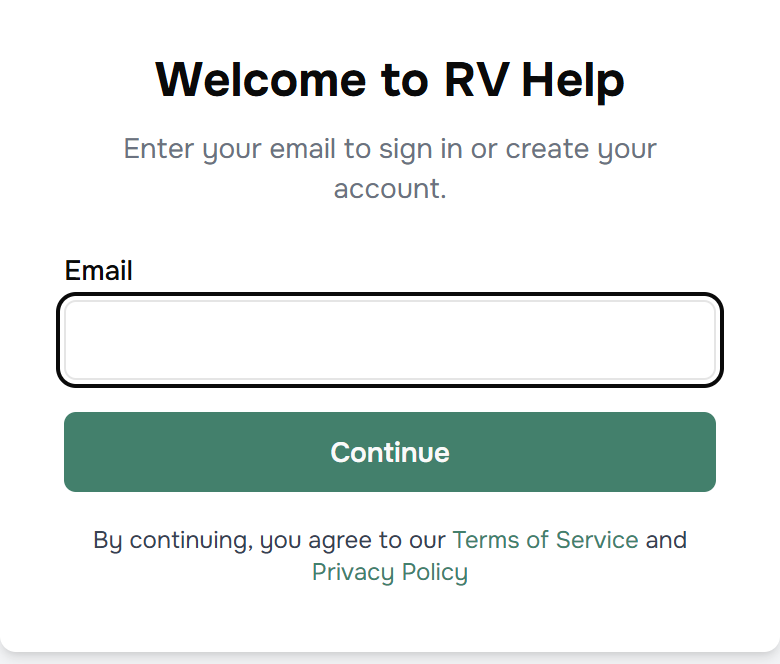
1Sign in and open your profile. Go to yellowpagesrv.com, press Sign in at the top right, type the email you signed up with, and use the code or link that arrives. You land on your profile.

The sign in page: a box showing yourname@example.com and a Continue button.

2Find Your reviews elsewhere and press Add a reviews page. It is in the first card, Your name and badges, below the logo box: about halfway down the first card, above the role ticks.

The section headed Your reviews elsewhere, with the Add a reviews page button.

3Choose where the reviews are. A card appears. Where these reviews are is a dropdown: Google, Facebook, or Somewhere else. Google is preselected. The how-to line under it changes with your choice. Up to three review pages are kept.

The review card: a dropdown reading Google, the link box, the rating and review count boxes, and the Fill in from Google button.

4Get the link the way that works best. Google: open Google Maps, search your own business name, and when your listing comes up press Share, then Copy link. Facebook: open your Facebook business page, go to the Reviews or Recommendations tab, and copy the address from the bar at the top. Your page has to be public and have recommendations turned on. Any address beginning with https:// is accepted. The account and tracking parts Google and Facebook hang on a link are removed when you save, so an owner clicking it is not sent to a sign in screen. The one refusal is a link that does not start with https, and the save then fails with this message at the bottom of the page: "Each reviews link needs to start with https://".

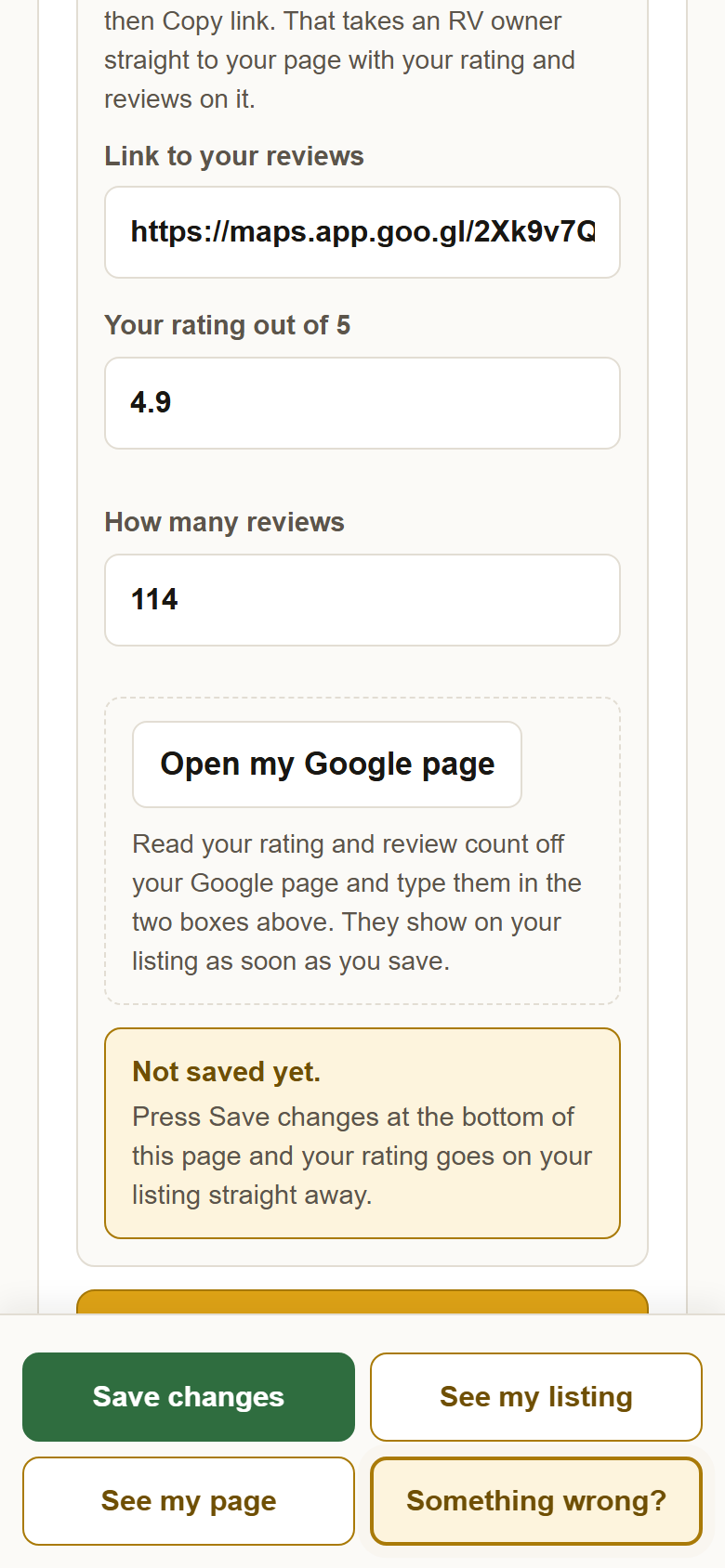
5Paste the link and type your rating and review count. Link to your reviews, then Your rating out of 5 and How many reviews, read off your Google or Facebook page. Two decimal places are fine for the rating. The dashed box is the Fill in from Google button, which is the next step.

The review card filled in: a Google Maps link, 4.9 out of 5, 114 reviews, and the message from Fill in from Google.

6Google only: press Fill in from Google. It takes a Google Maps link, a Google short link, a g.page link, or a Place ID, and nothing else. What it says:

  • "Put the link to your reviews in the box above first." The link box is empty.
  • "We could not read that link." It is not a Google link. Use Share, Copy link in Google Maps, or type the numbers by hand.
  • "Google would not give us your rating, and that is normal." Google only hands out a rating for a business that publishes a street address. Type the two numbers in and a person will check them.
  • "Could not reach Google just now." Try again shortly.
  • "Filled in from Google." Because these came from Google itself, nobody here has to check them and they show on your listing as soon as you save.

7Press Save changes. The card's status line becomes: "Waiting on us. Your rating is not showing yet. Nothing is wrong with your link. We check every rating against your page by hand, usually within a day, and it appears on your listing as soon as we have. Editing the link or the numbers starts that check again." Until we have checked it, the map shows No reviews yet on your row and the card carries the link, worded Their Google page, with no numbers. Numbers that came from Fill in from Google skip the queue and show on save.

The status line reading Waiting on us. Your rating is not showing yet, and the Save changes button at the bottom.

8What happens next. As long as it takes a person to check it, usually within a day. After we mark it checked, the line reads "Checked by us on [date]. Your rating is showing on your listing." and the map, your row and your page all show the rating and count. If the numbers did not match your page: "These did not match your page when we looked. Your listing shows the link but not the numbers. Correct them and save, and we will look again." If you have more than one page, your listing leads with whichever has the most reviews.

9An unverified Google Business Profile. The link works, the hand check works, and the rating shows once we have confirmed it, whether or not the profile is verified, because we are checking what is visibly on your Google page. Fill in from Google works when Google publishes a rating for the place, which it does for a listed business with an address and generally withholds for a hidden-address mobile business. An unverified profile that appears on Google Maps with a rating will usually fill in; a hidden-address one usually will not, verified or not, and the message tells you to type the numbers.

?Still stuck? Open your own link in a private window once, to see what a stranger sees. If it lands on a sign in screen, get the link again with Share, Copy link. If your rating has not appeared after a couple of days, write to support@yellowpagesrv.com and a person will look.

Print this guide (PDF) · Your profile · All guides