You have paid, and we have started your pin near the town you gave us when you signed up. Every step from here to it being live, starting with getting in.
Paying buys the listing. You put it on the map yourself, with one switch, once you have looked it over. Nothing goes in front of owners until you do.
Switch the pin on and it is on the map within a minute. There is no approval and nobody to wait for.
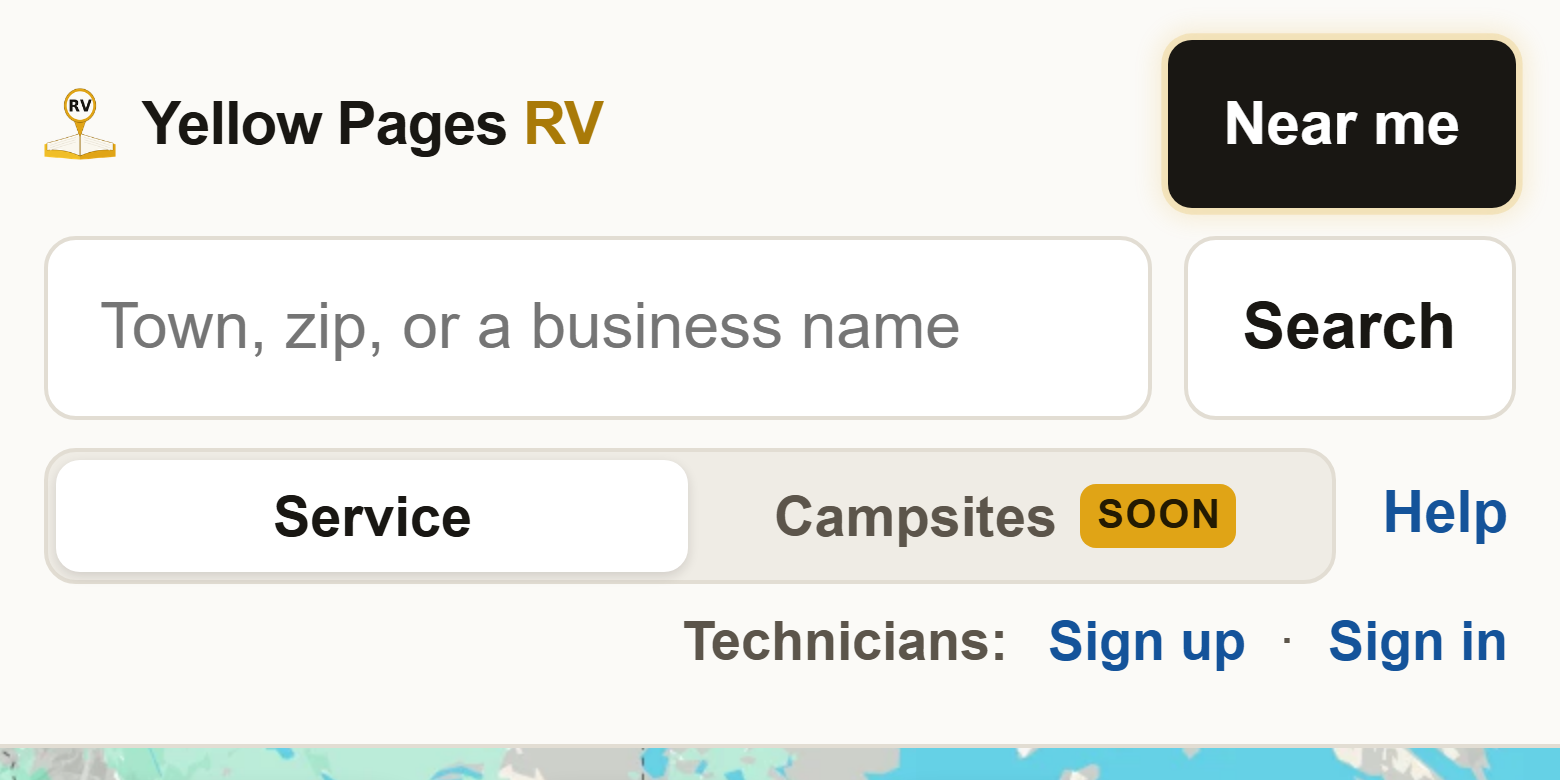
1Go to yellowpagesrv.com and press Sign in. It is in the small line that starts with Technicians, beside Help at the top of the map (just under Help on a phone). There is no password, and nothing to remember except the email you signed up with.
2Type the email you signed up with, then press Continue. The same one your receipt came to. If you have set a passkey up on this device, press the green button above the box instead and you go right in.

3Pick a link or a code. Email me a link if you will open the email on this same device. Email me a code if your email is on your phone and you are signing in on a computer.

4Open the email. It carries what you asked for: the code, or the link, never both. It works once and stops working after 30 minutes. If it does not appear in a minute, look in junk or spam.
5If you chose the code: type it and press Sign in. Read it off your phone, type it on the screen you are signing in on. Then you are in.

6If you chose the link: press it, then press Sign me in. Your email has a green Sign me in button instead of a code. Press it, and the page it opens asks for one more press, on that same device.

7You are in. This is your profile. Scroll down to Areas you cover. The top says Not showing. That is right for now. You stay signed in on this device for 30 days.

8Drag the pin to exactly where you work from. It already sits near the town you gave us at signup, and the card leads with Place your pin first. Drag it on the map to the exact spot, since your pin is where owners see you. To move it somewhere else entirely, type a different town or zip code in the box under the map and pick it from the list, and the pin jumps there. It goes where you are, not where you would like more work.

9Say how far you travel. Be honest with it. Miles from your pin is right for nearly everyone. An owner broken down who calls because your circle said you cover them, and hears you cannot get there, has wasted their time and yours. If a circle promises the wrong thing, press Draw the area on the map instead and tap out the boundary you actually cover. The next step shows when that is worth doing.

10When to draw instead: a state line or a coast. Say you work out of Yuma, AZ and hold an Arizona license only. A 45 mile circle around Yuma reaches well into California, so owners across the river call you for work you cannot take. Draw the area instead and tap along the state line: the boundary stops at the river, and an owner in California is never sent your way. Owners see the shape you drew, not a circle. The same goes for a coast, where half a circle is water, or a mountain pass that makes thirty miles a two hour drive.

11Back at the top: switch your pin on. The switch says Hide me on the map for now, and red means hidden. Press it so it goes off.
12The top now says On the map. Press Save changes. That is the moment owners can see you. The switch saves itself; Save changes keeps everything else you typed: the pin, the miles, and the rates below. It follows you down the page.

An owner with a broken slide has three listings open. Two say nothing about money or what they do. The one that says what it costs, what work it takes on, and who is behind it is the one that gets the call. Three more things, ten minutes.
13Put your rates in. Call out fee and labor per hour, in the Rates section. An empty box shows as "not listed", and owners read that as a gap. If you do not charge a call out fee, or you price by the job rather than by the hour, check the box under it and your listing says so in those words.

14Write two or three honest sentences about yourself. In the box labeled Tell owners about yourself. What you do, how long you have done it, and what people call you for. Not an ad: write it the way you would say it to somebody at the next site over. Then check off the work you take on, in the Work section above it, because owners filter by it.

15Press Save changes, then See my listing. See my listing opens the map with your pin on it, exactly as an owner sees it. See my page opens your own page, the one to put on your website and your Facebook page.
?Stuck at the email, or still not showing? If the email does not come, ask for another; nothing bad happens if you ask twice. If your email system will not let you press the link, the code gets around that. Once you are in, check the top of your profile. If it says Payment problem, your card did not go through and the switch will not put you up until it does. If it says anything else you do not understand, write to support@yellowpagesrv.com and a person will sort it out.
 Yellow Pages